
How to install HanderAya on your phone’s home screen
New to HanderAya? In this guide I’ll walk you step by step through the process of adding HanderAya to your phone’s home screen so it behaves just like a native app – with an icon, full‑screen experience and one‑tap access.
You’ll learn how to install HanderAya on iOS (iPhone) and Android, plus where to place mock screenshots if you want to illustrate the process in your UI or marketing materials.
Table of contents
- What does “install on home screen” mean?
- How to install HanderAya on iPhone (iOS)
- Step 1 – Open HanderAya in Safari
- Step 2 – Open the Share menu
- Step 3 – Choose “Add to Home Screen”
- Step 4 – Confirm the name and add
- Step 5 – Launch HanderAya as an app
- How to install HanderAya on Android (Chrome)
- Step 1 – Open HanderAya in Chrome
- Step 2 – Open the Chrome menu
- Step 3 – Choose “Add to Home screen” or “Install app”
- Step 4 – Confirm and place the icon
- Step 5 – Launch HanderAya like a native app
- Troubleshooting common issues
- Start your first session
What does “install on home screen” mean?
HanderAya is a Progressive Web App (PWA). That means you don’t have to download it from the App Store or Google Play. Instead, you:
- add it to your home screen from the browser,
- get a regular app icon,
- open it in full screen, without the browser address bar,
- launch it with a single tap, just like any other app.
How to install HanderAya on iPhone (iOS)
On iOS you need to use Safari. Other browsers on iPhone don’t fully support the “Add to Home Screen” option for PWAs.
Step 1 – Open HanderAya in Safari
- Open the Safari app.
- Type the HanderAya address (for example https://www.handeraya.com) and go to the page.
- Wait until the page finishes loading.
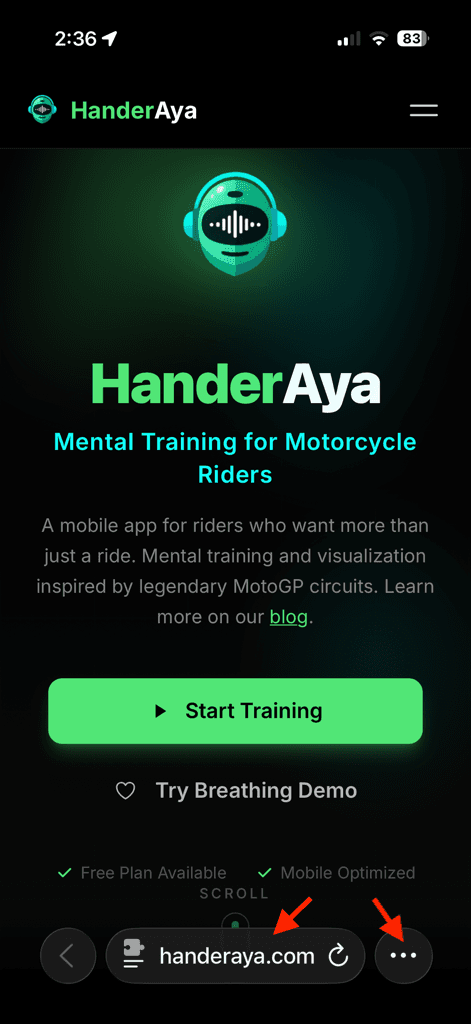
Step 2 – Open the Share menu
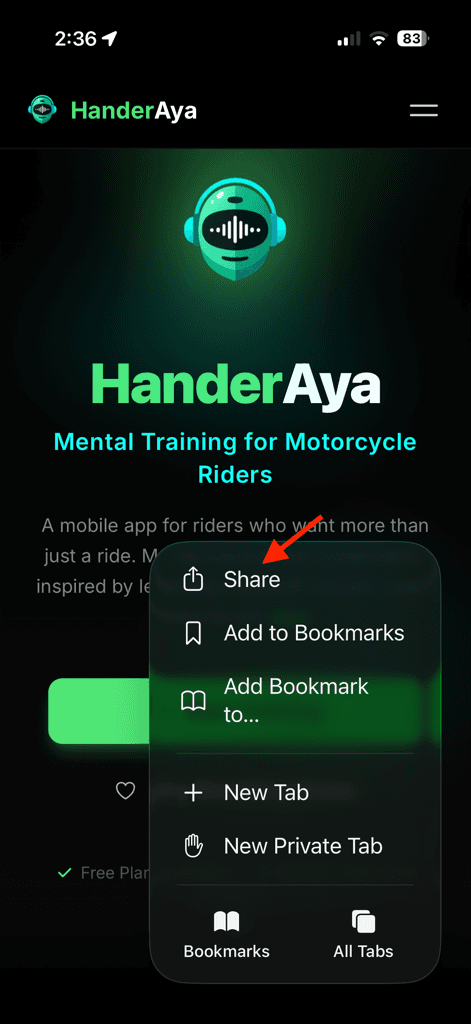
- On the bottom toolbar in Safari, tap the Share icon (square with an arrow pointing up).
- A share sheet will slide up from the bottom of the screen.
Step 3 – Choose “Add to Home Screen”
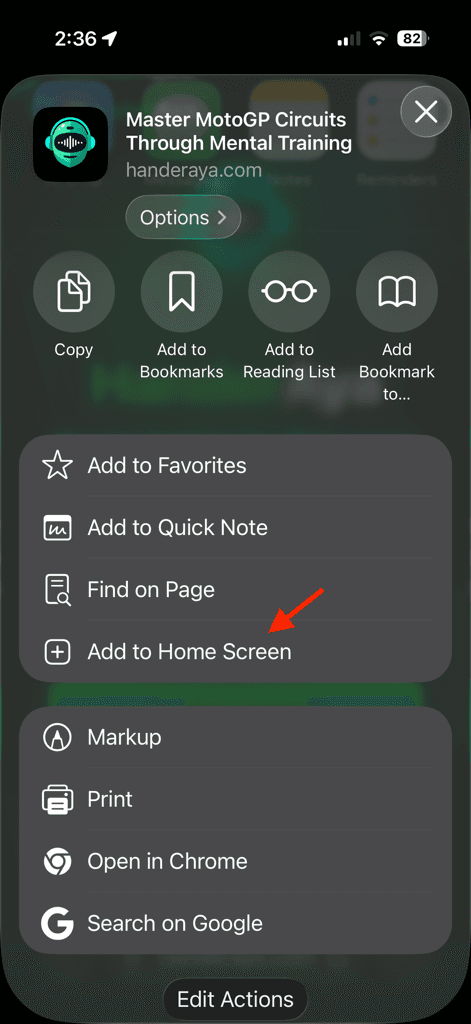
- In the action list, scroll if needed and tap Add to Home Screen.
- iOS will open a preview screen with the HanderAya icon and name.
Step 4 – Confirm the name and add
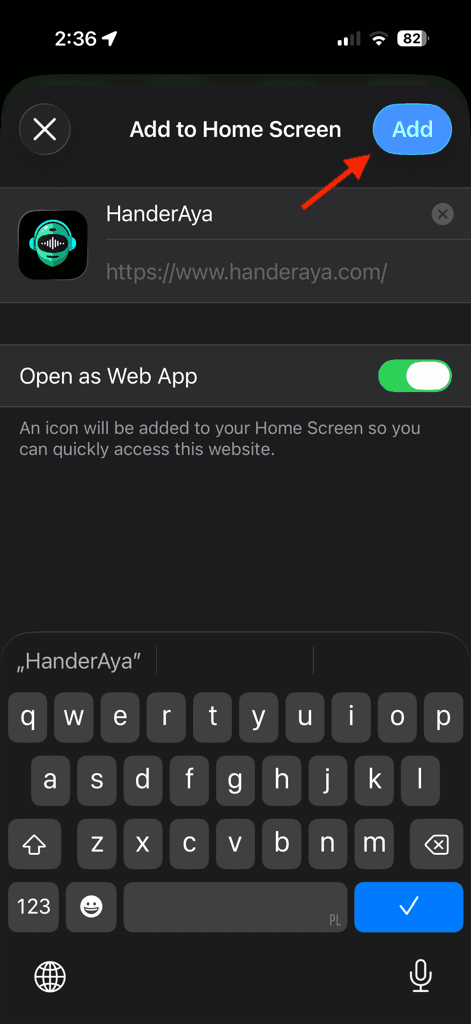
- Check that the app name is correct (for example HanderAya).
- Tap Add in the top‑right corner.
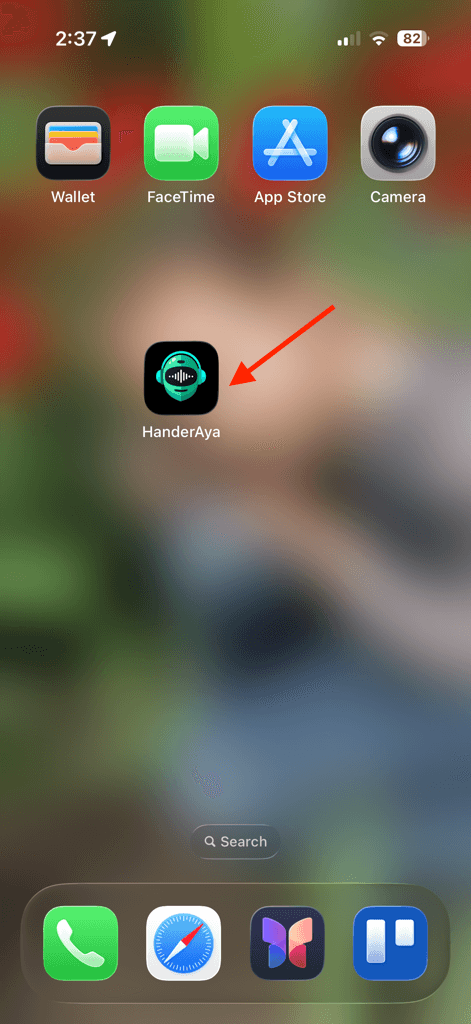
iOS will automatically place the HanderAya icon on your home screen, just like any other app.
Step 5 – Launch HanderAya as an app
From now on you can simply find the HanderAya icon on your home screen and tap it. The app will open in full screen, without the Safari address bar, and behave like a regular app.
How to install HanderAya on Android (Chrome)
On Android the most common way to install HanderAya is through Google Chrome, although other browsers have similar options.
Step 1 – Open HanderAya in Chrome
- Open the Chrome app.
- Enter the HanderAya address (for example https://www.handeraya.com) and open the page.
- Wait for the page to fully load. On some devices you may see an automatic banner suggesting installation.
Step 2 – Open the Chrome menu
- Tap the three vertical dots in the top‑right corner.
- The Chrome menu will expand with a list of options.
Step 3 – Choose “Add to Home screen” or “Install app”
Depending on your version of Chrome and Android, you’ll see either:
- Add to Home screen, or
- Install app.
Tap the option you see to continue.
Step 4 – Confirm and place the icon
Android may:
- add the icon to your home screen automatically, or
- ask you to drag the icon to a specific place.
Confirm by tapping Add / Install, or drag the icon where you want it.
Step 5 – Launch HanderAya like a native app
Once the icon is on your home screen or in your app drawer, tap it to open HanderAya. It will run in its own window, in app‑like full‑screen mode, not as a regular browser tab.
Troubleshooting common issues
- I can’t see “Add to Home Screen” on iOS
Make sure you’re using Safari, not Chrome or Firefox. Refresh the page and open the Share menu again. - I don’t see install options on Android
Check that you’re on the latest version of Chrome and that the HanderAya address starts with https://. Close the tab, reopen the site and wait a few seconds. - The app still opens like a normal website
Delete the existing shortcut from your home screen, then repeat the installation steps using Safari (iOS) or Chrome (Android).
Start your first session
Once HanderAya is on your home screen, open it, pick a track, set the number of laps, put on your headphones and start your first mental training session.
Ready to try it now?Open the app and start training.